
Get started with the DocuWriter CLI
Start from a project folder and continue in your DocuWriter Space. The CLI can generate documentation from a snapshot of your codebase or import Markdown documentation you already have.
Before you begin
You need:
- Node.js 22.18.0 or later, with npm and
npxavailable. - An interactive terminal and internet access.
- A DocuWriter account. You can sign in or create one during browser authorization.
- Permission to upload the files in your selected project folder.
Check your Node.js version:
node --version
Start from your project
Open a terminal in the project you want to document:
cd /path/to/your-project
npx docuwriter
You can also select a folder explicitly:
npx docuwriter --cwd ./packages/api
The CLI uses exactly the selected folder. Selecting a subdirectory does not automatically upload the whole repository.
Confirm and authorize
- Check the folder shown in the terminal. The snapshot can include local edits and untracked files after exclusions.
- Confirm Document this folder?
- Follow the browser link shown by the CLI.
- Sign in or create an account, then approve the CLI authorization request. Complete any account verification the browser requests.
- Return to the terminal when it shows that your account is connected.
Your CLI session is saved for later runs. If the browser does not open automatically, open the printed link yourself.
Choose your workflow
When asked Do you already have documentation?, choose:
- Generate documentation to create documentation from your project snapshot. See Generate documentation.
- Import existing documentation to bring selected Markdown files and their supported local images into a new Space. See Import existing documentation.
Complete the remaining prompts and leave the terminal open during packaging and upload.
Continue in your Space
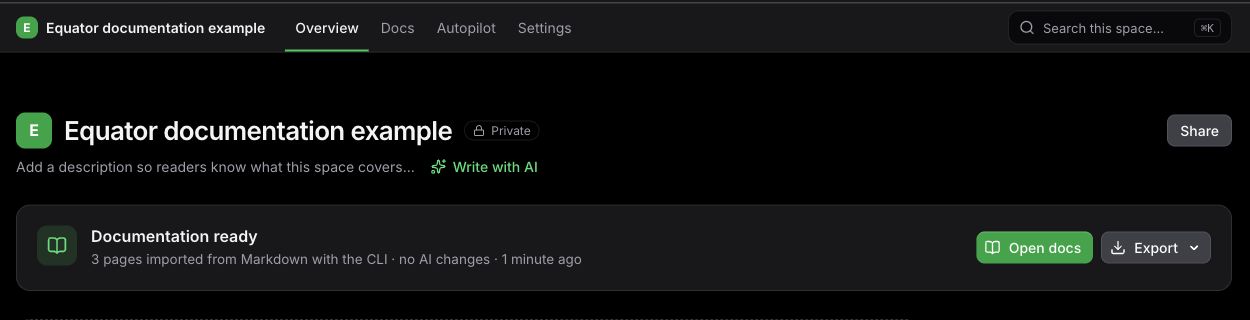
Example: after an import completes, open the documentation from the Space overview.
When the CLI shows Snapshot accepted, it prints and opens the exact Space URL. You can close the terminal and follow generation or import progress in DocuWriter.
Upload acceptance means processing has started; it does not mean all documentation is already complete. Generation is subject to your account's access and available credits.
For printed links without automatically opening a browser, use:
npx docuwriter --no-open
Browser authorization is still required when you are not already signed in. Setup is interactive, including when using --json.
See Command reference, Privacy and file exclusions, or Troubleshooting.