
Import existing documentation
Bring existing Markdown files into a DocuWriter Space without asking AI to generate replacement content. The importer preserves the selected folder structure and links between included Markdown pages, and imports supported local images referenced by those pages.
Start from the containing project
Run the CLI from the folder containing your documentation:
npx docuwriter
Or select that folder explicitly:
npx docuwriter --cwd /path/to/your-project
Confirm the folder, then sign in through the browser if prompted.
Select your documentation
- Choose Import existing documentation.
- Wait for the Markdown scan to finish.
- Select one or more folders or individual Markdown files. The list shows page counts. All documentation selects the discovered Markdown throughout the selected project.
- If necessary, choose Enter a documentation path and provide a path relative to the selected project, such as
docs/guidesorREADME.md. - Check the displayed page, image, and file counts.
- Enter a Space name.
Overlapping selections do not duplicate the same file. Paths must stay inside the selected project and must not be excluded by the applicable file rules.
For example, a project could contain:
README.md
docs/
  getting-started.md
  guides/
    authentication.md
  images/
    setup.png
Selecting README.md and docs/ includes the Markdown pages. A relative image reference such as  in docs/getting-started.md also includes that local image when it is eligible for upload.
Supported content and limits
- Markdown extensions:
.mdand.markdown. - Markdown must contain valid UTF-8 text.
- Up to 1,000 Markdown files, with at most 5 MiB per Markdown file.
- Referenced local images: PNG, JPEG, GIF, and WebP, with at most 10 MiB per image.
- The snapshot also follows your account's ZIP upload limit: up to 1 GB on the free plan and a 20 GB technical ceiling for paid accounts.
Include both the source and destination page when you want a relative Markdown link to become a link between imported pages. Only eligible referenced local images inside the selected project are bundled; the CLI does not download remote images into the snapshot.
Excluded or unsupported local images may not appear in the imported page. Check the resulting pages and any import warnings in your Space.
Open the imported Space
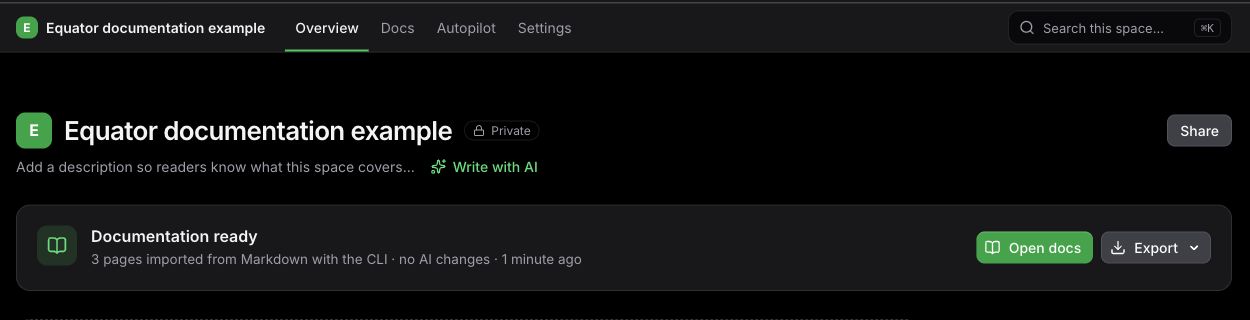
Example: after an import completes, open the documentation from the Space overview.
Keep the terminal open until the snapshot is accepted. The CLI then prints and opens your Space URL. You can close the terminal and follow import progress in DocuWriter.
Importing does not automatically connect a Git repository or keep local Markdown changes synchronized. This CLI run imports a snapshot of your selected documentation.
See Privacy and file exclusions for selection rules and Troubleshooting for missing files or interrupted uploads.