
Start from the CLI
Start DocuWriter from a local project with npx docuwriter. The guided terminal flow lets you generate documentation from a project snapshot or import existing Markdown, then continue in a documentation Space.
Use the CLI documentation for the full command reference and troubleshooting.
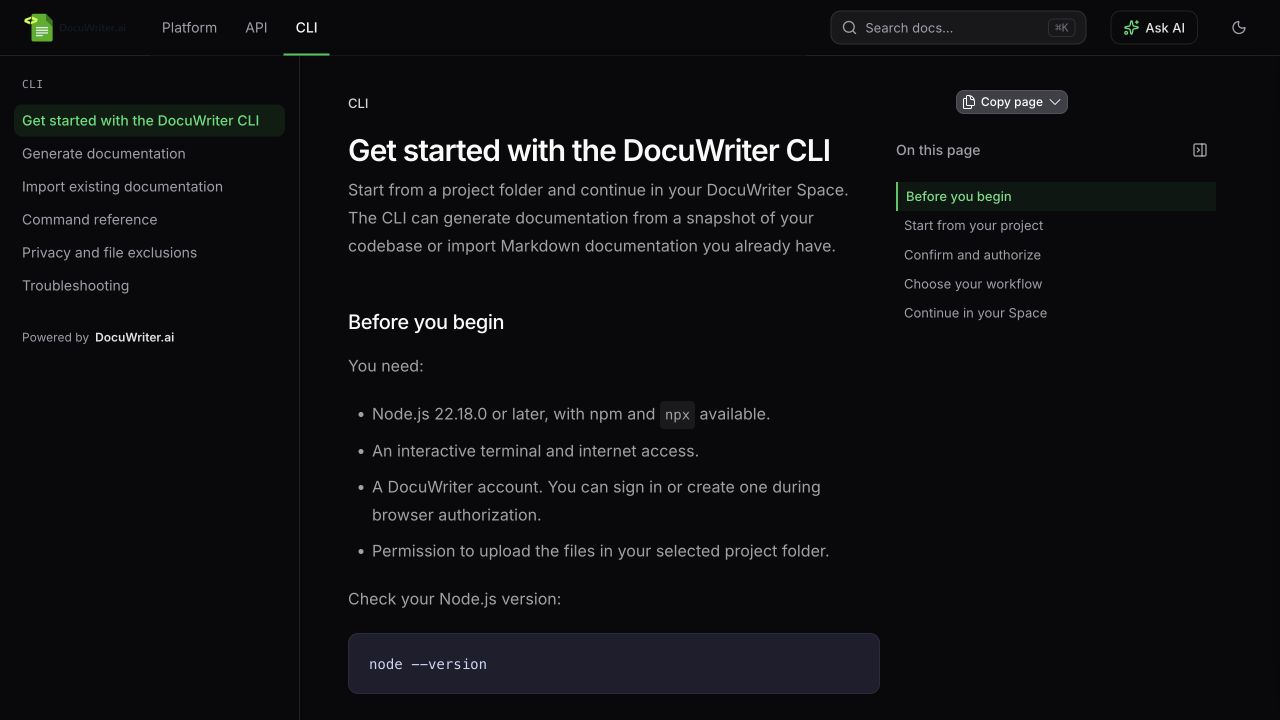
Open the dedicated CLI documentation for detailed workflows and command examples.
Before you start
Install Node.js 22.18.0 or later and run the CLI in an interactive terminal. You need a DocuWriter account and access to a browser to approve sign-in.
Choose the local directory you want to document. It can be a Git repository or a project directory without Git.
1. Open your project
In your terminal, change to the project directory and run:
npx docuwriter
To target a specific directory from elsewhere, pass its exact path:
npx docuwriter --cwd ./packages/api
The selected directory is the project scope. In a larger repository, point --cwd at the package you want to document.
2. Authorize DocuWriter
Follow the device sign-in instructions shown in the terminal. Approve the request in your browser using the DocuWriter account you intend to use, then return to the terminal.
If the terminal cannot open your browser automatically, use:
npx docuwriter --no-open
The CLI prints the links for you to open manually. Browser authorization is still required.
3. Choose the workflow
Confirm the selected project folder, then follow the prompts for the task you need:
- Generate documentation from your local project. Review the project selection and requested generation choices before confirming the snapshot upload.
- Import Markdown. Use existing Markdown documentation as the content for a Space and follow the import prompts.
Review the prompts before confirming either action so the selected account, directory and destination match your intended documentation.
4. Continue in the Space
After the server accepts the project snapshot, the terminal flow finishes and opens the resulting Space. Follow generation progress in the browser; snapshot acceptance does not mean every documentation page has finished.
For imported Markdown, open the destination Space and check its pages and folder hierarchy. For generated content, wait for completion and review the overview, a main workflow and a reference page against your project before sharing.
Use the Space editor to correct or expand the result. You can also organize related Spaces as sections so readers can switch between platform, API and CLI documentation and search across them.
Keep the documentation current
A CLI project upload is a point-in-time snapshot. It does not authorize a Git provider, create ongoing repository synchronization or enable Autopilot.
To maintain documentation from future Git events, connect the relevant provider and set up Autopilot separately. For another local snapshot or Markdown import, run the CLI again and follow its prompts.