Connect ChatGPT or Codex
Bring your DocuWriter documentation into ChatGPT or Codex. Find pages in your Spaces, ask questions about your codebase, and generate documentation from code you share.
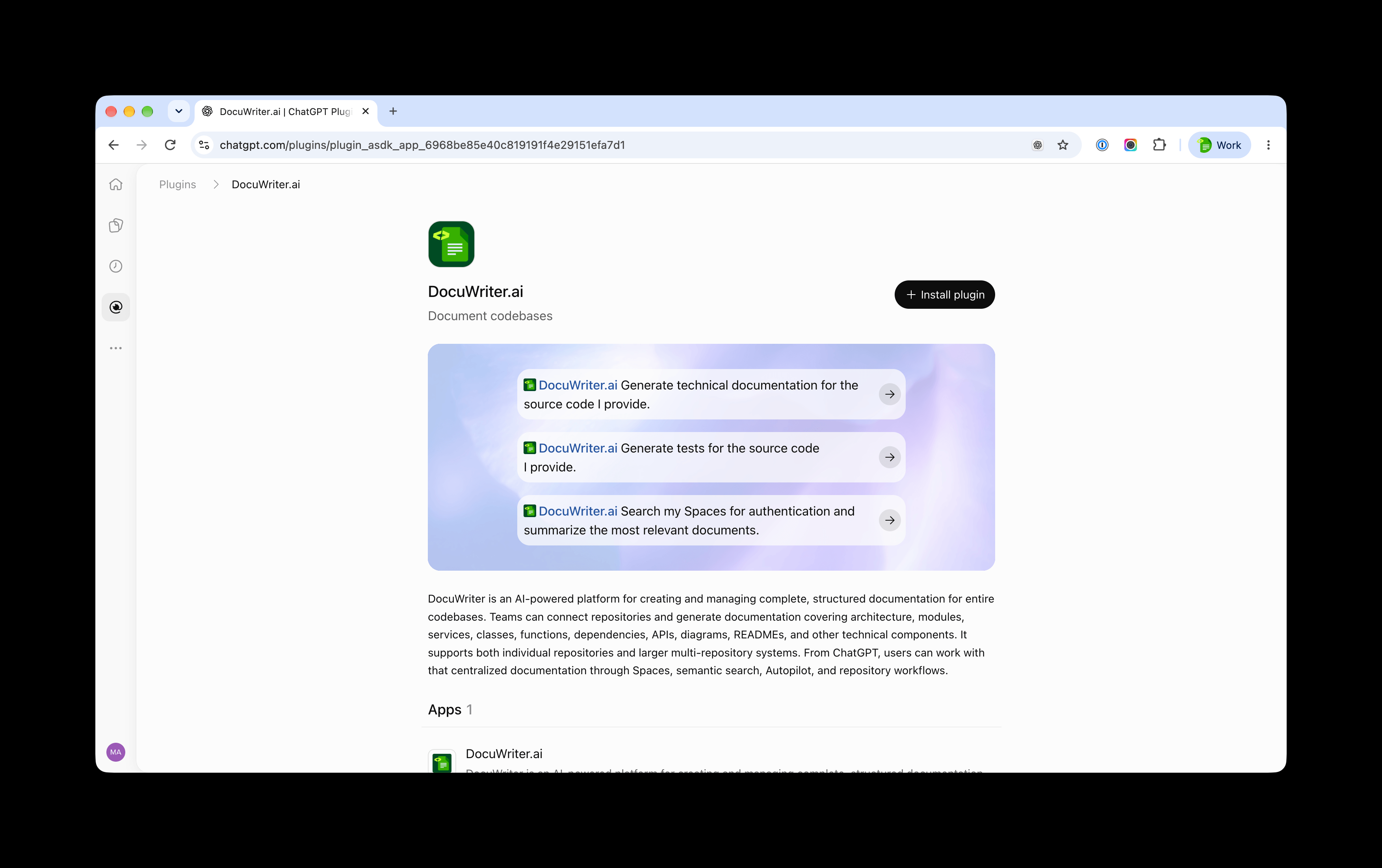
Connect your account
- Open DocuWriter.ai in the plugin directory.
- Select Install.
- Select Connect when prompted.
- Sign in to your DocuWriter account.
- Review and approve the access request, then return to ChatGPT or Codex.
Use the DocuWriter account that has access to your team's documentation. If your organization manages plugins, your administrator may need to enable DocuWriter.
You do not need an API key or any server configuration.
Try your first request
Start a conversation and select DocuWriter.ai from the available plugins. In ChatGPT, you can type @DocuWriter.ai and select it.
Ask:
Show my DocuWriter Spaces.
You should see the Spaces available to your connected account.
Find answers in your documentation
Describe what you need in your own words:
Find the onboarding guide in our payments Space and summarize the setup steps. Include links to the pages you used.
Then ask a follow-up:
What does a new developer need to know about authentication?
Include the Space or page name when you know it. This helps the assistant find the intended documentation.
Generate documentation from code
Paste the code you want documented and explain who will read the result:
Write documentation for this function for a developer joining our team. Explain the inputs, return value and error handling.
Review the generated documentation before using it. Only share code you are authorized to share with ChatGPT or Codex.
Update a page
Name the page and describe the change you want:
Read the authentication page and draft a clearer introduction. Show me the proposed text before saving it.
Once you are satisfied, ask the assistant to save the change. Review any approval prompt before continuing.
Need help?
Cannot find DocuWriter? Check that you are in the correct workspace. Your organization's administrator may need to enable it.
Cannot see your Spaces? Make sure DocuWriter is selected in the conversation and that you connected the correct account.
Asked to sign in again? Follow the reconnect prompt and sign in to DocuWriter. Never paste passwords or API keys into a conversation.
A feature is unavailable? Available features can differ between ChatGPT, Codex and devices. Continue the task in DocuWriter or contact DocuWriter support with the error message.
Updated