
Organize documentation with sections
Bring related documentation together with shared navigation and search. For example, keep platform guides, API documentation and CLI instructions in three separate Spaces, then present them as Platform, API and CLI sections in one documentation site.
A section is a navigation entry. Its source can be the parent Space, one of that Space's top-level folders, or another Space you manage. Public readers use tabs at the top of the site; signed-in readers use the section switch above the Docs sidebar.
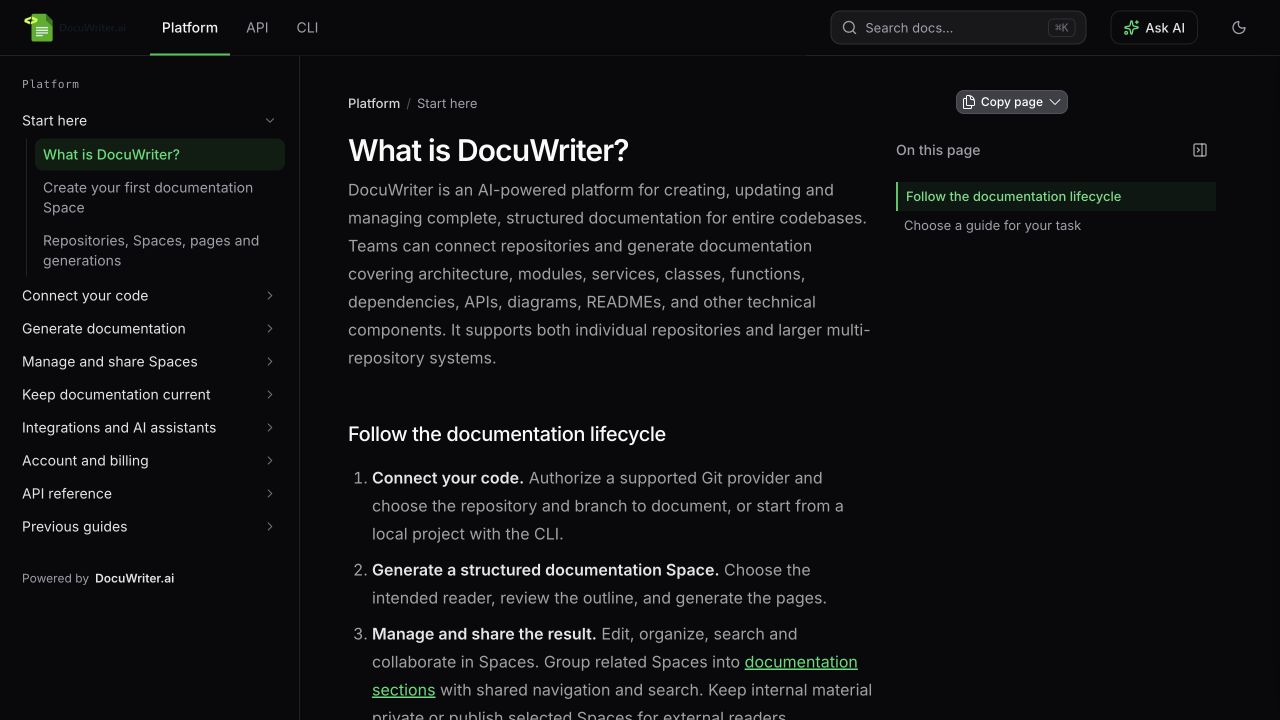
Readers switch between independent Spaces using the shared section tabs.
Choose the parent Space and sources
Choose the Space whose branding should represent the documentation site. Manage its navigation from Settings → Sections.
For separate projects, create or choose separate Spaces in the same account or team. You must be able to manage a Space to attach it. Each linked Space keeps its pages, permissions, editors, public URL and Autopilot settings.
A Space can belong to one documentation site at a time. A Space that already has its own configured sections cannot be linked as a nested site. If a Space is already linked, open its Settings → Sections and use Manage sections to return to its parent Space.
Add Platform, API and CLI sections
- Open the parent Space and select Settings → Sections.
- In the existing This Space row, set Tab name to Platform.
- Select Add section → Another Space.
- Choose the API Space, enter API as the Tab name, and click Add section.
- Repeat for the CLI Space with CLI as its tab name.
- Arrange the rows in the order readers should see them.
- Click Save sections.
Use short tab names so readers can distinguish each area on smaller screens. The Readers see preview shows the public navigation; Open public site opens the reader view when a public section is available.
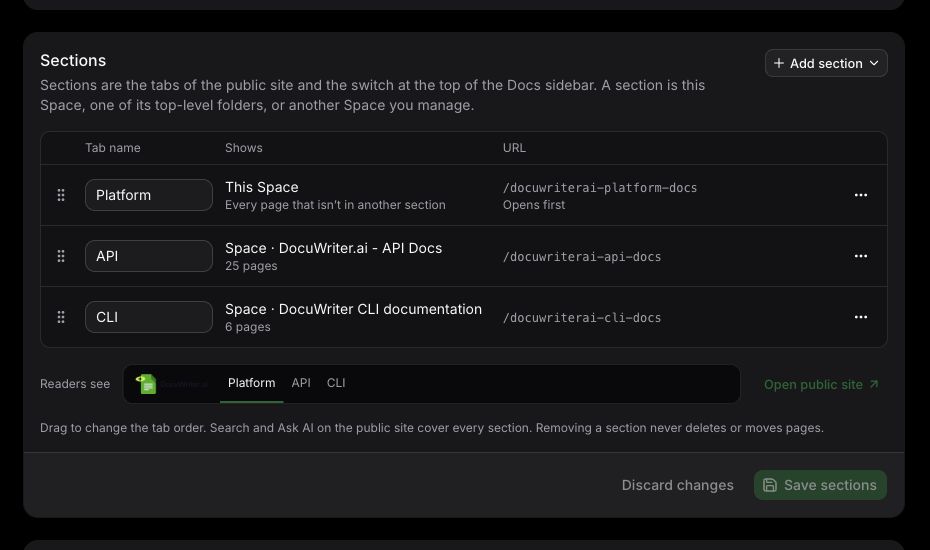
Configure section sources, names and order from the parent Space.
Use a folder as a section
If all the content belongs in one Space, select Add section → Folder in this Space. Choose an existing top-level folder, provide a Tab name, and click Add section. Create a folder in Docs first if none are available.
The folder and its descendant pages appear in their own section and leave the main tab's sidebar. Their location and URLs remain the same. A folder section does not create a separate permission boundary: use separate Spaces for content with different visibility or access requirements.
Set the order and starting section
Drag rows to change their tab order. You can also open a row's actions menu and choose Move up or Move down.
To choose where readers start when opening the site, open that section's actions menu and select Open this section first. Its row shows Opens first. Keep one default section and click Save sections after making changes.
The parent Space remains one section. Its This Space row includes every page that is not assigned to a folder section.
Navigate and search
Select a public tab or the section switch in Docs to open that section's pages. Its sidebar, breadcrumbs and previous/next navigation follow the selected section.
On the public site, use search with All sections to find content across the eligible documentation sections, or select a section filter to narrow results. In the signed-in app, select Whole site to include linked Spaces; This space limits results to the current Space. Then choose All sections or a section filter. Results include the section and page hierarchy. On the public site, Ask AI can answer using eligible public pages across sections and link to its supporting pages; it requires the publisher's active paid plan.
See Search documentation and ask questions.
Control public visibility
Linking a Space does not change its sharing settings. Public tabs include only sections whose source Space is public and has discoverable content. Empty or private sections remain hidden on the public site. Signed-in readers only see source Spaces they are allowed to access.
To publish a linked section, open its source Space's settings, enable Make this space public, configure its public slug, and click Save settings. Review its content before publication. Making that source private again removes it from public navigation, search and Ask AI.
See Publish a public documentation Space.
Change or remove a section
Edit a Tab name directly. For a folder or linked Space, use its actions menu's Change source option to select a different source. Click Save sections to apply changes or Discard changes to return to the last saved configuration.
Remove section removes only the navigation entry. It never deletes or moves the underlying pages. Removing a folder section returns its pages to the parent Space's main section; removing a linked Space leaves that Space independent, with its original content, permissions and URLs.